Download issues in Edge
How to fix download issues in Microsoft Edge
When using VOLAGIC in Microsoft Edge, you may occasionally experience problems downloading files such as Task schedules or reports.
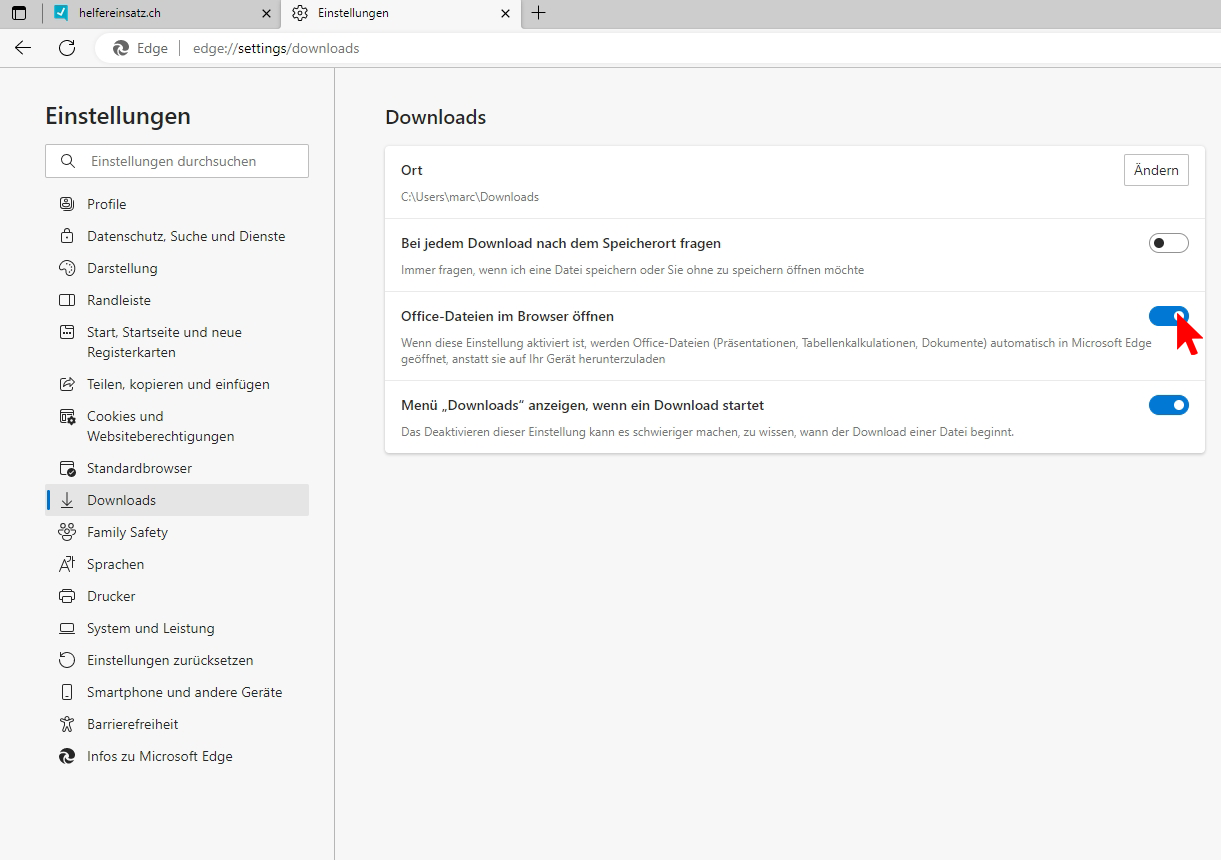
If you receive an error message, it is most likely due to a default setting in Edge. When the "Open Office files in the browser" checkbox is enabled, Edge tries to open the files in the web version of Office. However, this will not work if you are not signed in.
We therefore recommend disabling this checkbox. Follow these steps:
1. Open the Microsoft Edge browser.
2. Click the three dots in the top-right corner ("Settings and more").
3. Select "Settings" from the drop-down menu.
4. Select "Downloads".
5. Disable the "Open Office files in the browser" checkbox.
Edge will now download the files directly to your computer, allowing you to open them without any problems.