Task schedule update
We’ve revised and updated the Task schedule. Here’s what’s new:
Design
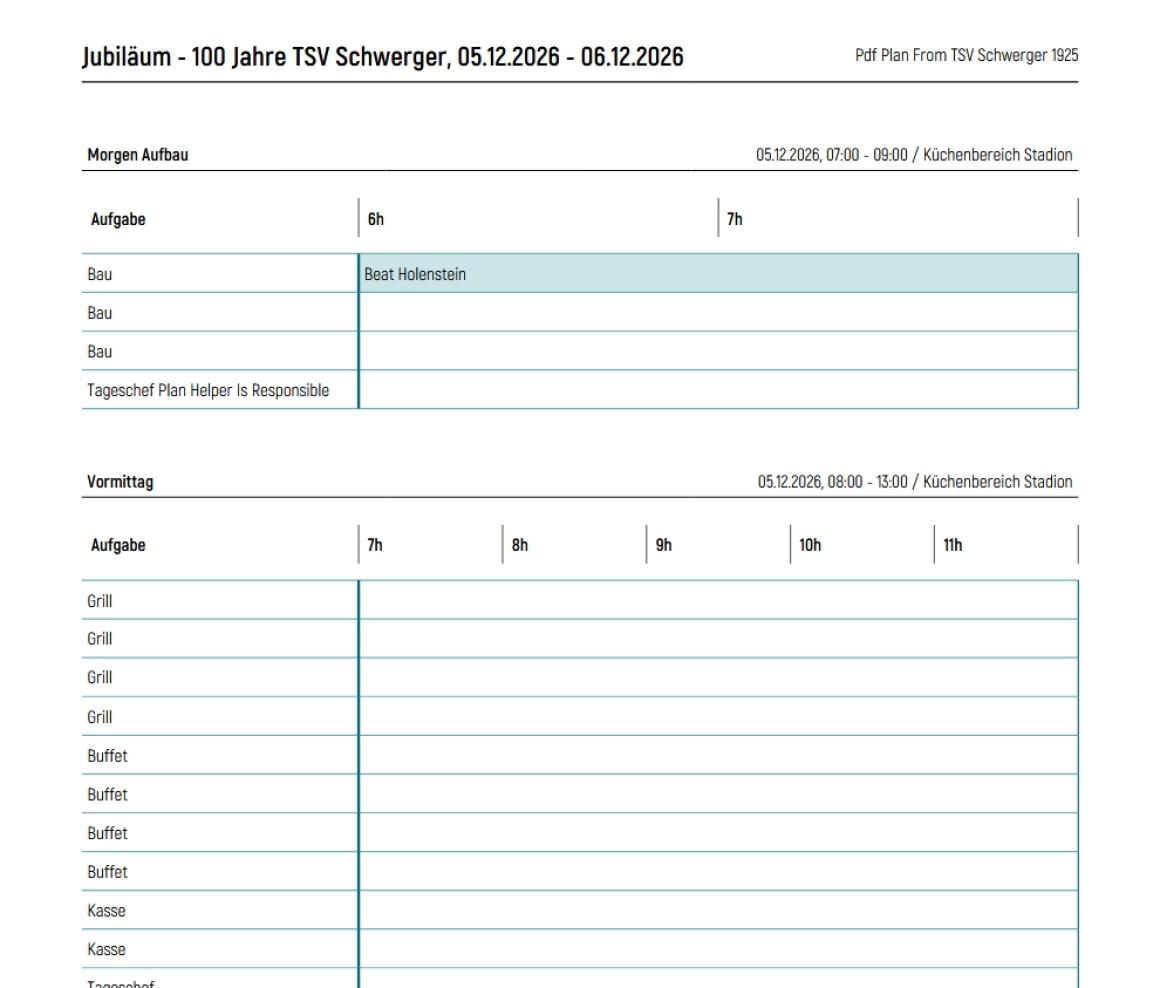
We’ve aligned the Task schedule with the VOLAGIC design. The font used in the tool is now also used in the Task schedule. As the font is quite narrow, more information can fit into less space.
Display of Helper names
To minimise the risk of individual rows becoming too tall, Helper names that no longer fit within the Task time slot are now displayed before or after it.
“Timeless” Tasks
In VOLAGIC, you can create Tasks without a specified duration. One example would be a time for dropping off cakes or similar items. These Tasks are now also displayed correctly in the Task schedule.
Extended hour display
The hour columns are no longer limited to 10 hours. They now have a minimum width, allowing you to display longer Shifts clearly. If the duration is still too long, hours are grouped into blocks of two and, for even longer periods, into blocks of three.
Task comments
Task comments are now included for every Task. They appear below the Shift view, identified by the corresponding number shown on the Task.
Helper data
For each person listed, their phone number and date of birth are now included, provided these fields have been enabled and filled in by the organisation. These are the system-defined fields under “Helper data”. If you collect this information using custom fields, it cannot be displayed.
Different options
Wherever you can export the Task schedule, you can now choose how to export it: portrait or landscape orientation, with or without Helpers’ contact details.