For Helpers
Here you will find a detailed step-by-step explanation of the Helper section. The first steps show you how to find the Tasks and log in. You will find the advanced steps in the submenus.
The steps marked as "optional" are defined by your organisation - they may or may not apply to you. If they do not apply to you, simply skip them when reading.
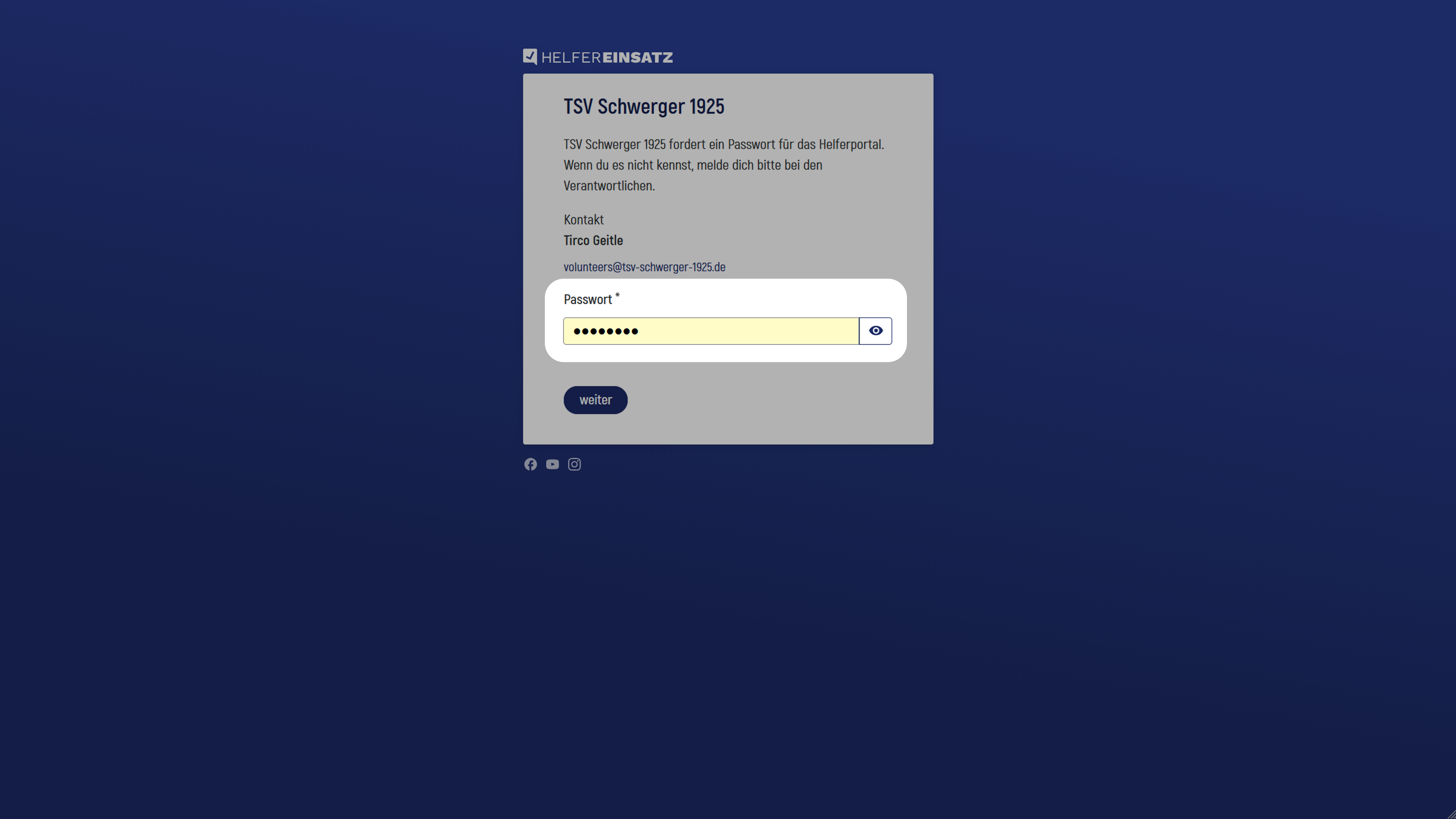
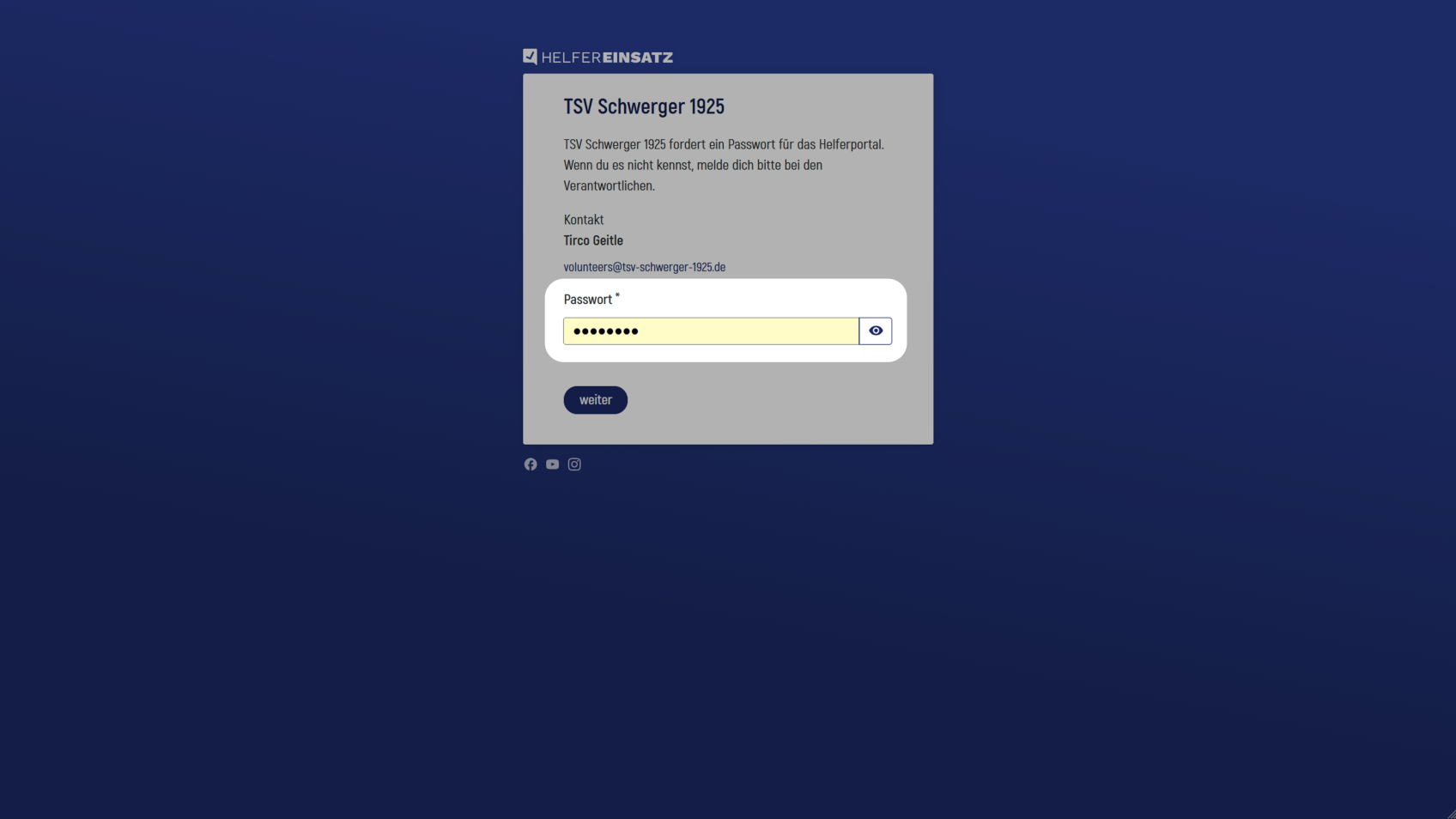
Enter password (optional)
If the organisation for which you want to carry out Tasks has set a password for the Helper section, you will first need to enter it here. If you do not know the password, the contact details of the responsible people will be shown on the password entry screen so that you can get in touch with them.
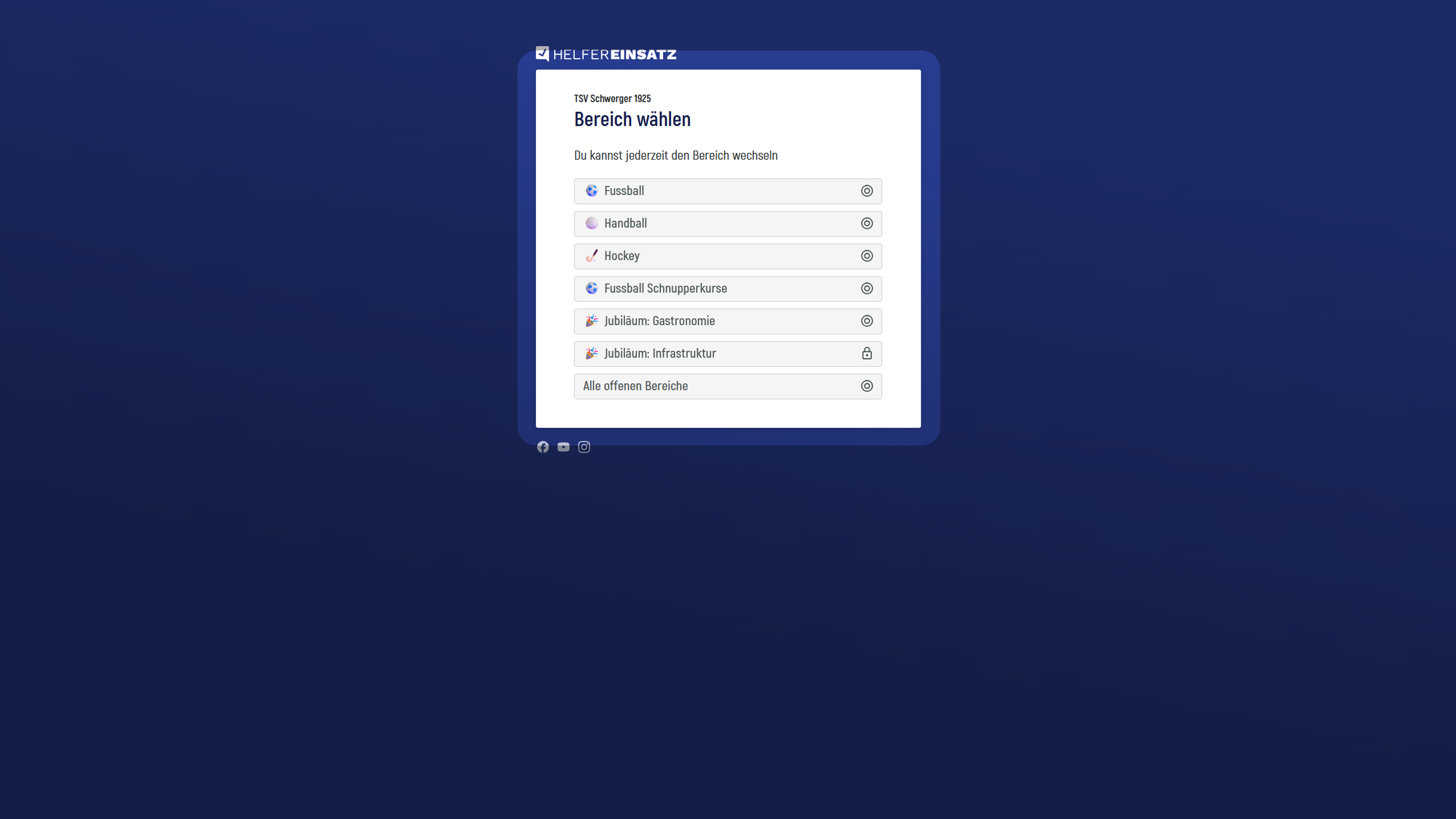
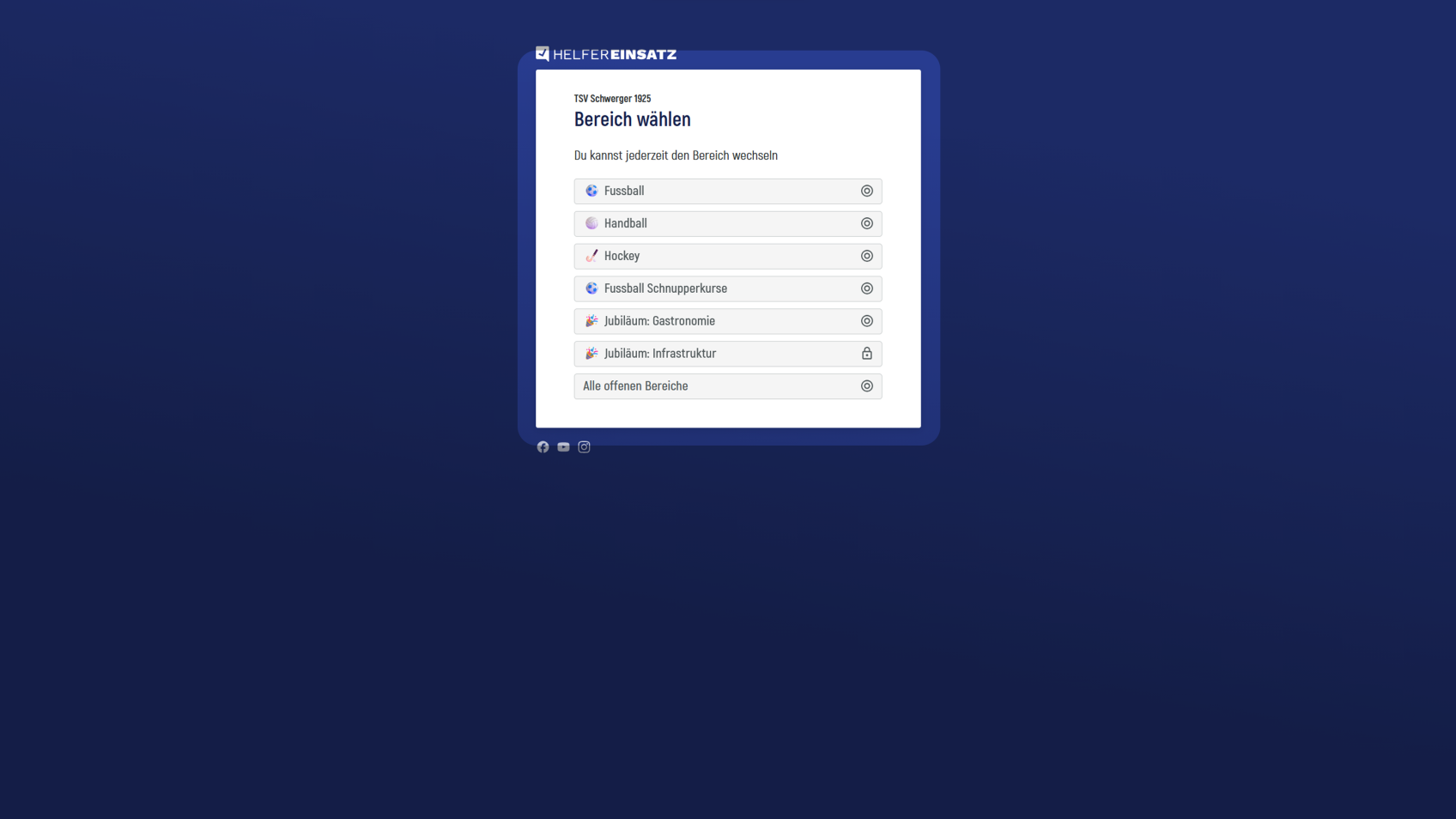
Select Section (optional)
If your organisation uses an Expert subscription, you will first see the Section selection. Here you can select the Section in which you want to search for Tasks. You can also switch Sections in the Helper section at any time. The Sections vary depending on the organisation; the screenshot only shows an example of what this might look like.
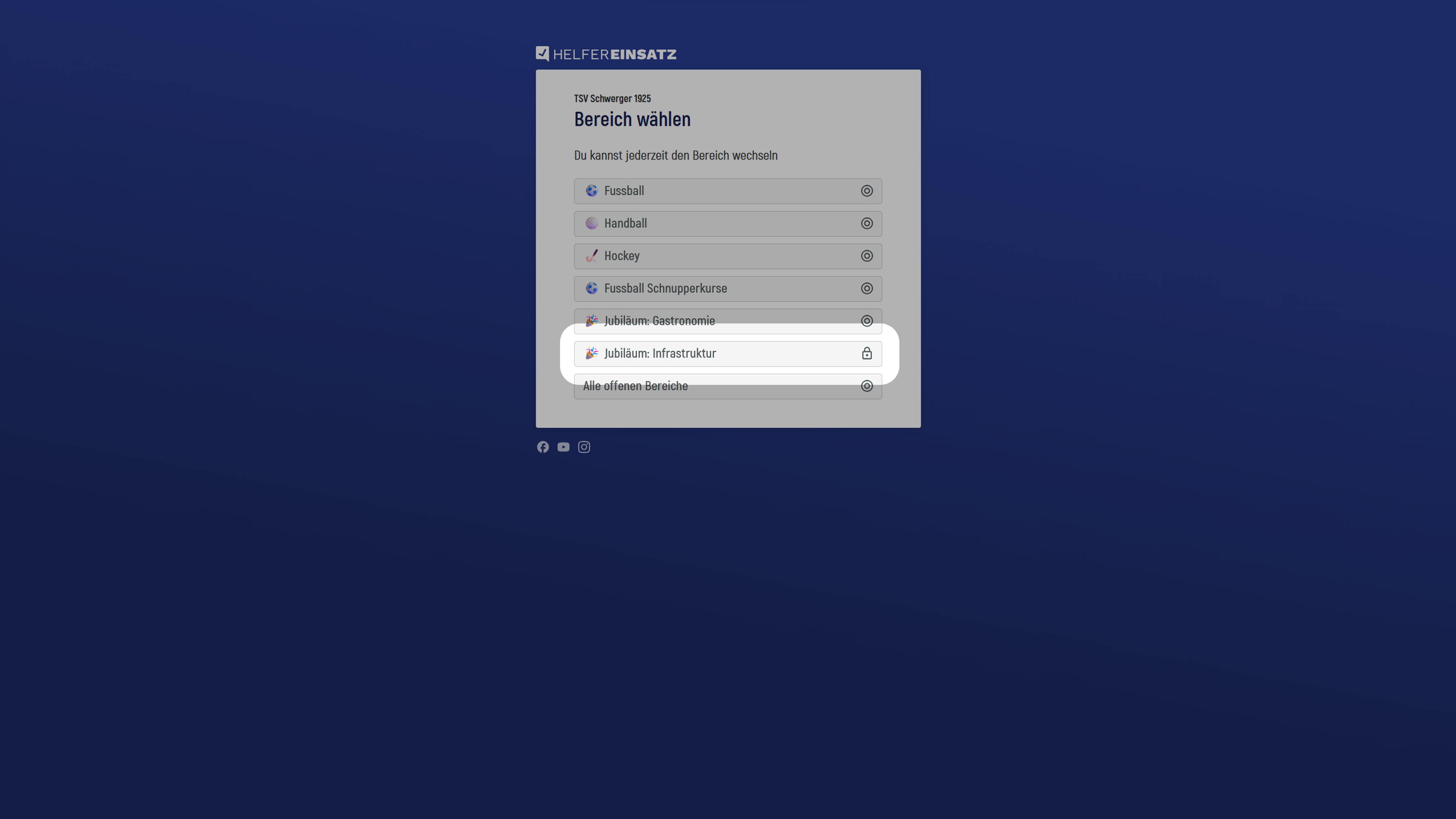
Password-protected Section
Organisations can protect Sections with a password. If you want to work in one of these Sections, you therefore need to know the password. If you do not know it but need to work in a password-protected Section, contact the people responsible for the organisation (their contact details are shown on the password entry screen).
All open Sections
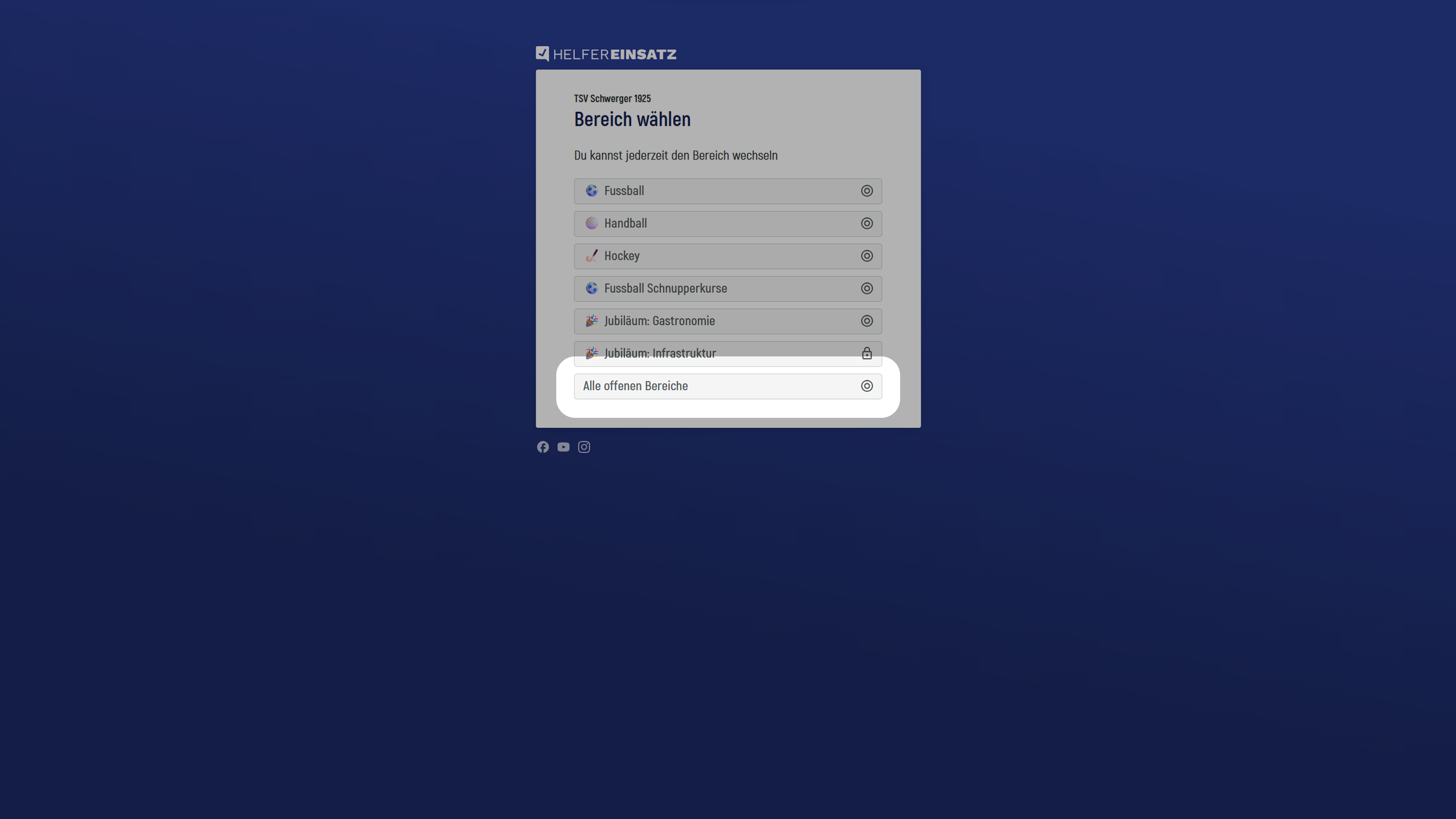
At the bottom of the Section selection, you will find "All open Sections". If you do not want to make a selection beforehand, you can choose directly from all available Events and Tasks here.
Events overview
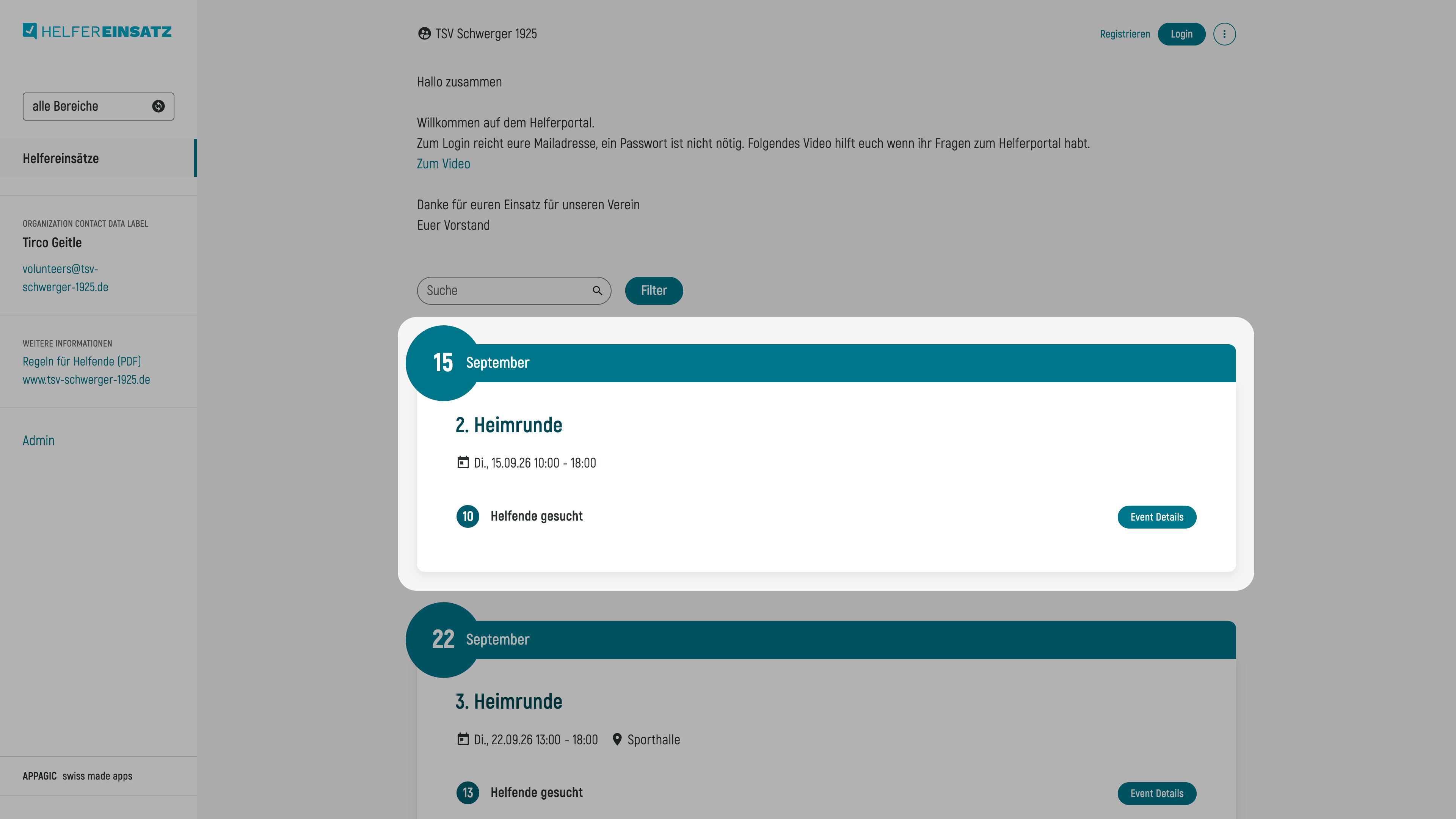
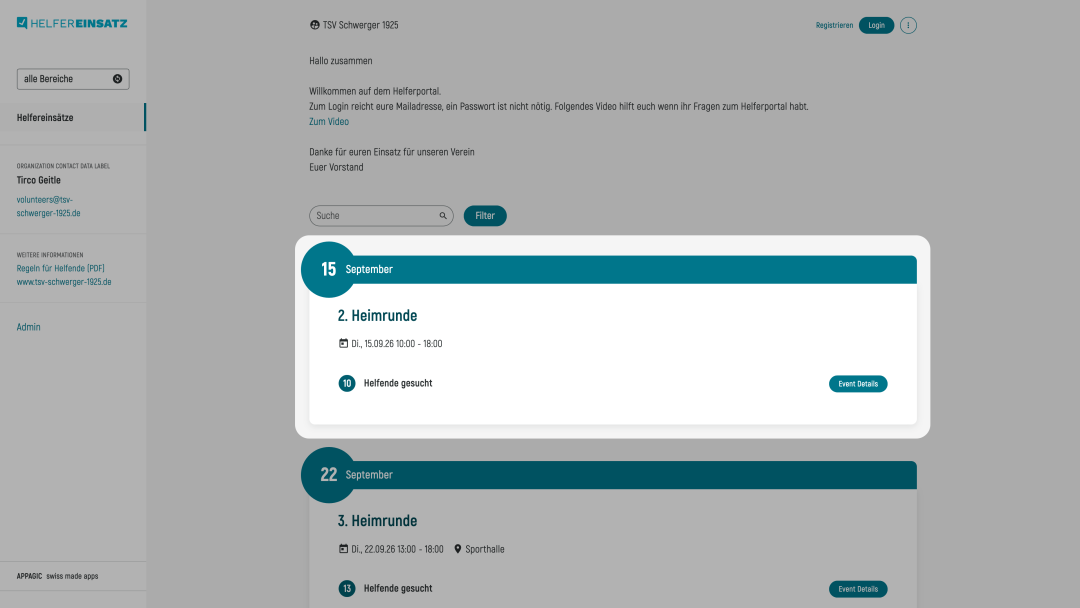
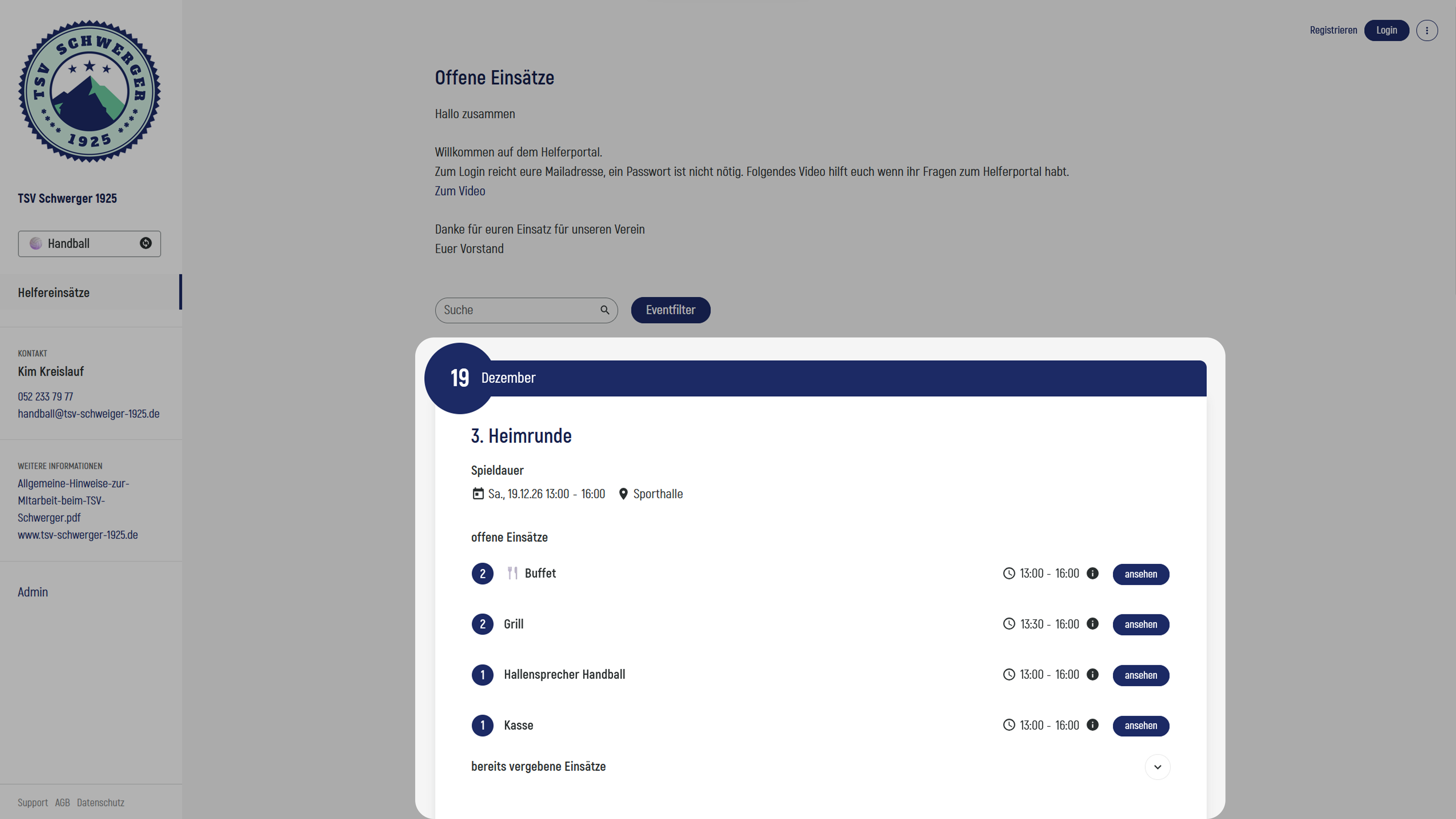
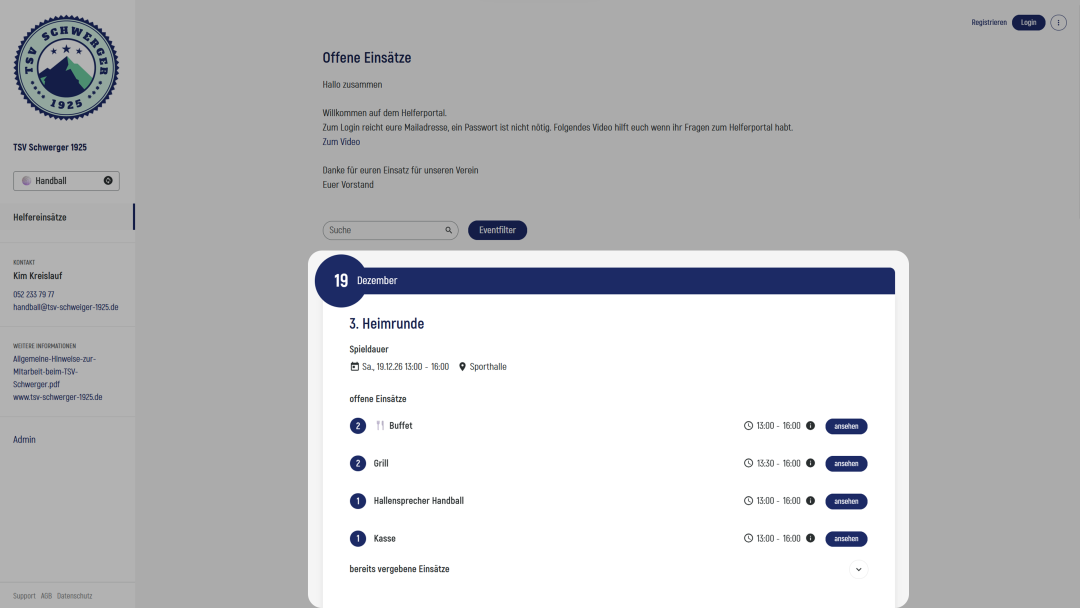
You are now in the Events overview. It can be displayed in two different ways: compact or expanded. Depending on how many Events are available, your organisation will choose one of these views. The screenshots below show the difference between the two views.
Register / Log in
Before you can take on Tasks, you need to be registered and logged in. If you are not sure whether you are already registered, you can simply click "Login" - if your email address has not yet been registered, the system will take you to the registration process.
For both registration and login, you will first be asked to enter your email address. You will then be taken to the next step.
Registration
If your email address has not yet been registered in the system, you first need to register. To do this, complete the fields in the registration form. Your organisation determines which fields are required. If your organisation uses Groups, you can also assign yourself directly to one or more Groups. As soon as you click "Save", your registration is complete and you will be taken to the Events overview.
If the email address is already registered in the system but you want to register another person with the same email address (for example, your child), select "Register now" under "Create new profile". This will start the registration process.
Login
If your email address is registered, you will be logged in directly. It is possible to register several people with the same email address - for example, parents and children. If this applies to you, select the person for whom you want to take on Tasks and you can then get started.
Login: Missing form fields
Your organisation can add additional form fields even after you have registered. This means that after logging in, you may be asked to provide some additional information. Once you have done this, you will be taken to the Events overview.
Login: Password protection
You can protect your profile with a password at any time, although this is not mandatory. Your organisation may require a password - in this case, you will need to set one during registration. If the requirement was introduced after you registered, you will be notified when you log in. You can then set your password using the link in the email sent to you.
If you have recently been appointed as a Teamadmin, you will also need to set a password. The process is the same as described above.