Take on Tasks
Once you are logged in, you can take on Tasks. Here you will learn how to find the Tasks you want and what options are available when taking on a Task.
Event filters
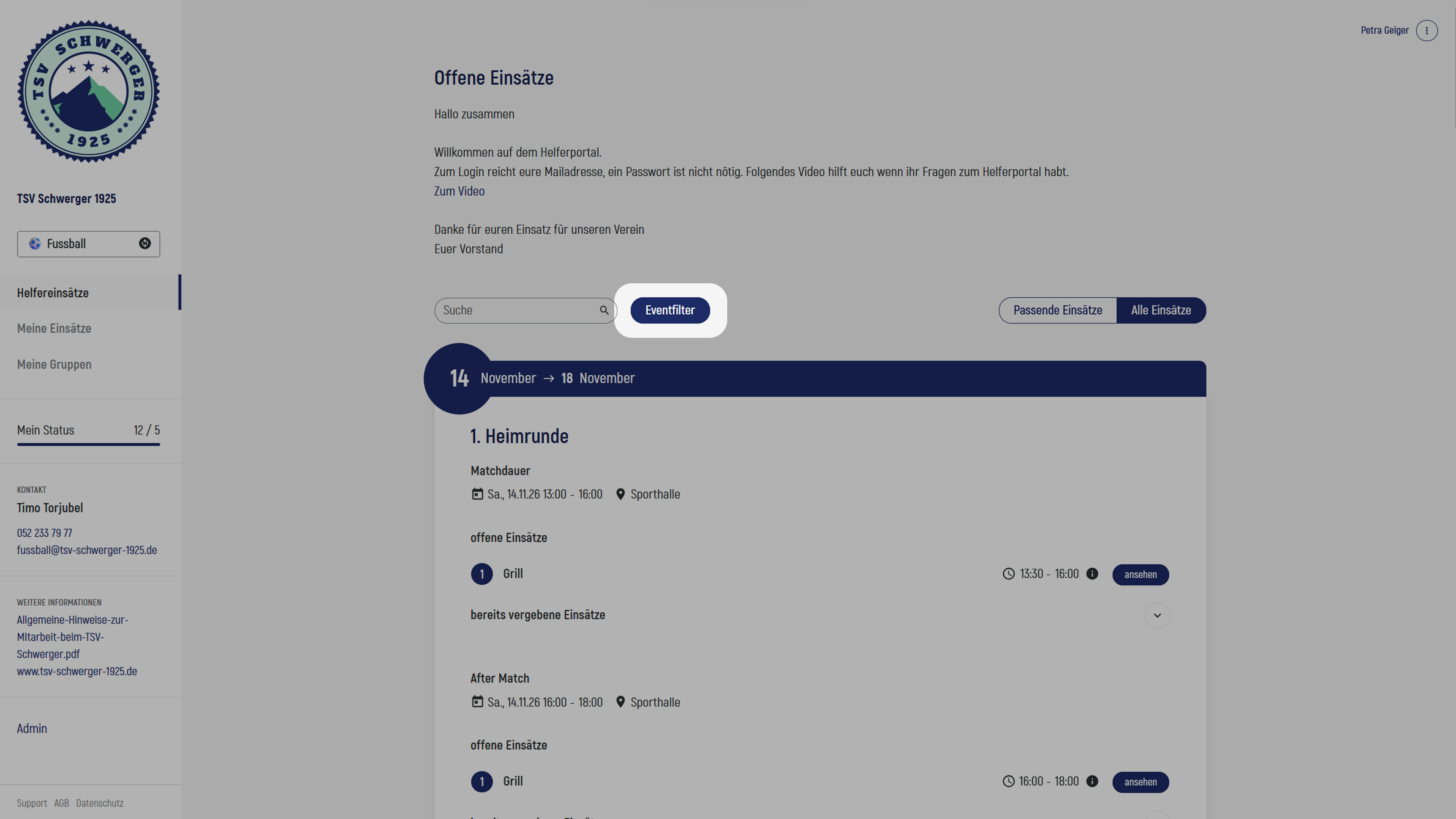
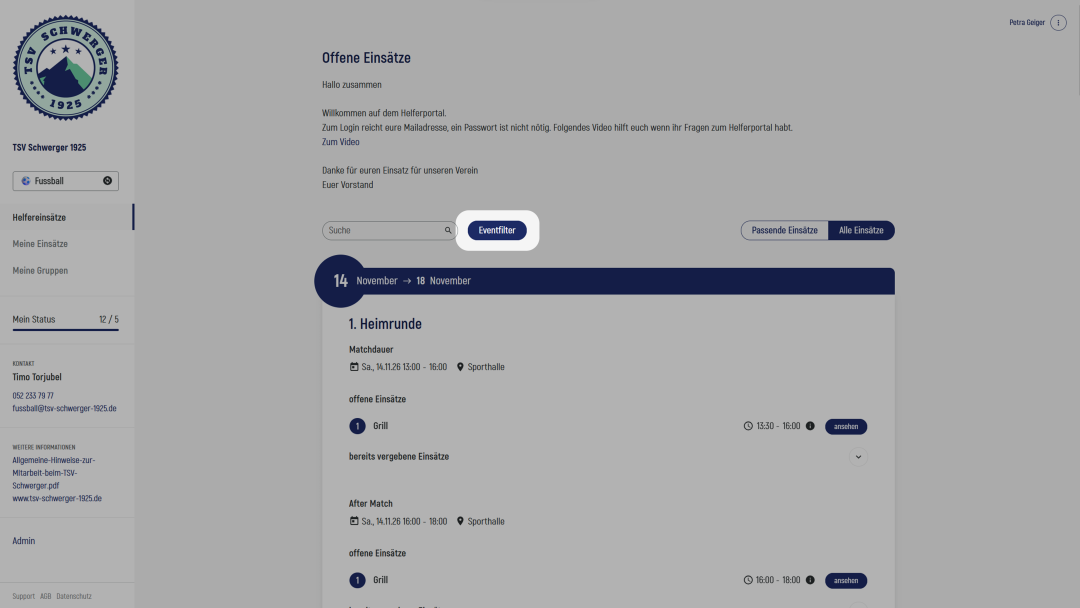
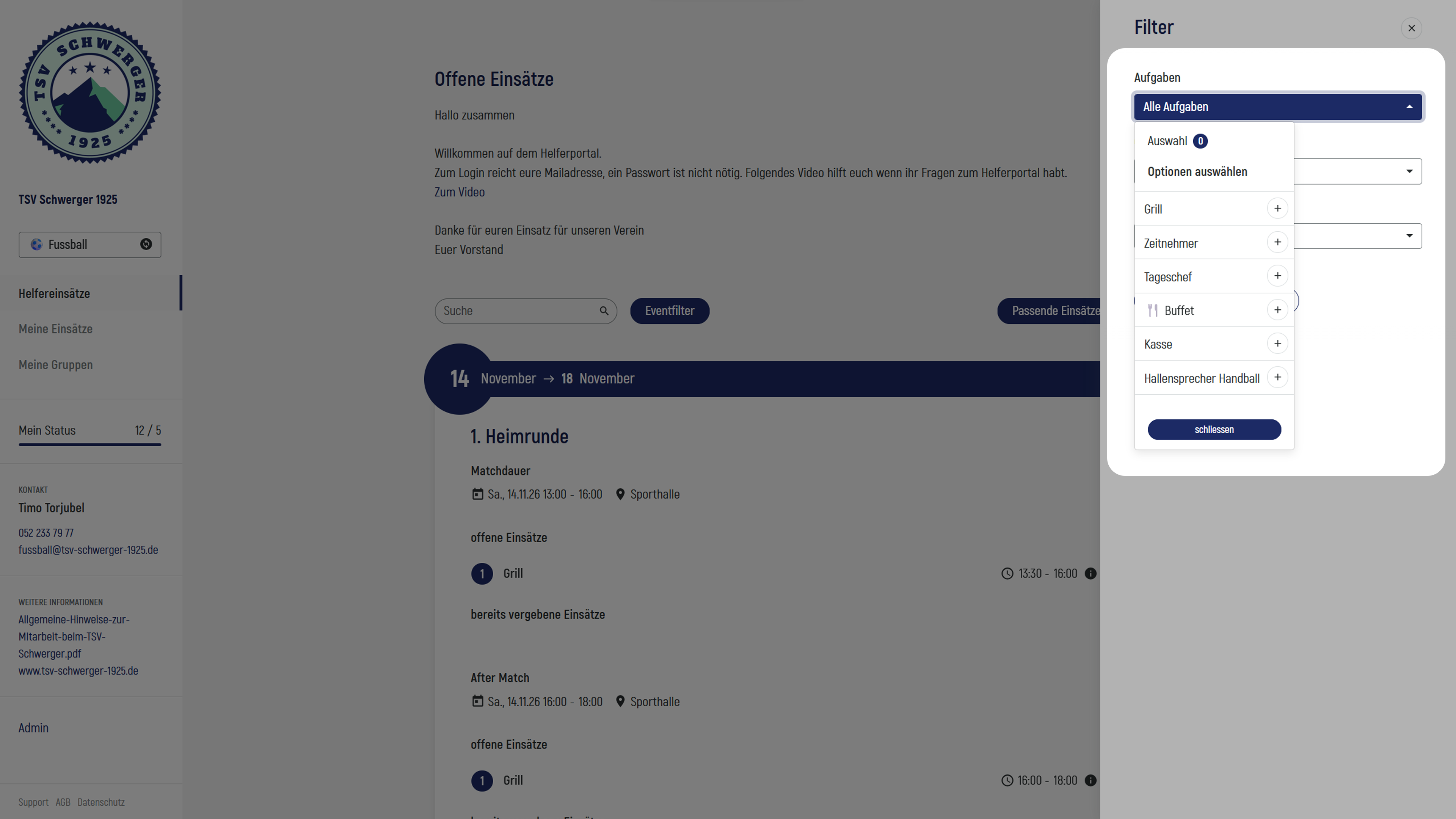
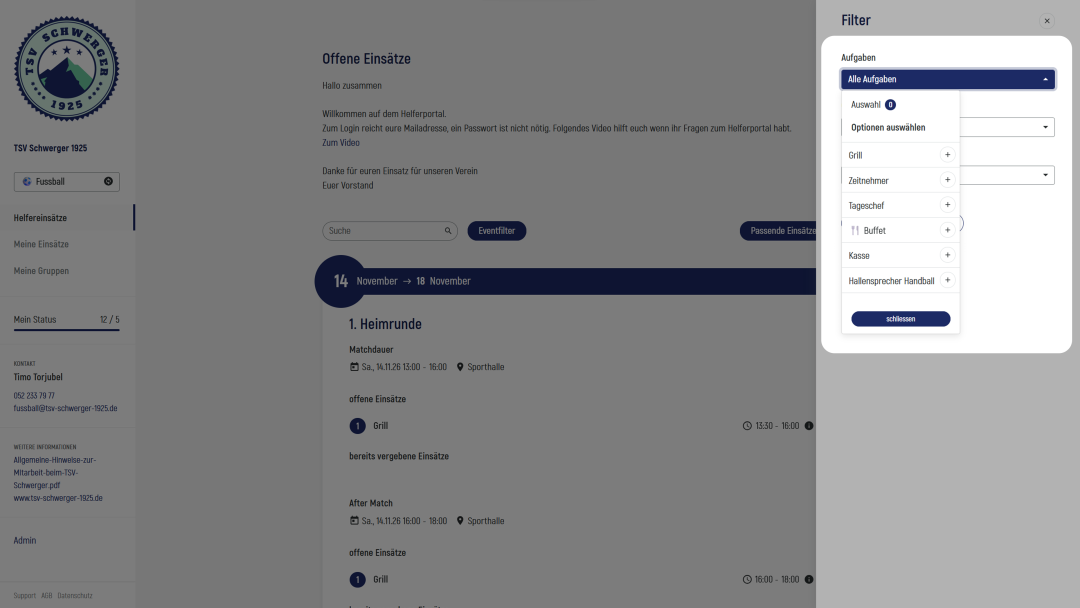
To find the Tasks that suit you best, you can use the Event filters. Here you can filter by activity (Job), work location (Locations) and preferred Task date (Dates). You can also select multiple options for each filter. As soon as you click "Apply", all Tasks matching your filter settings will be displayed.
Matching Tasks
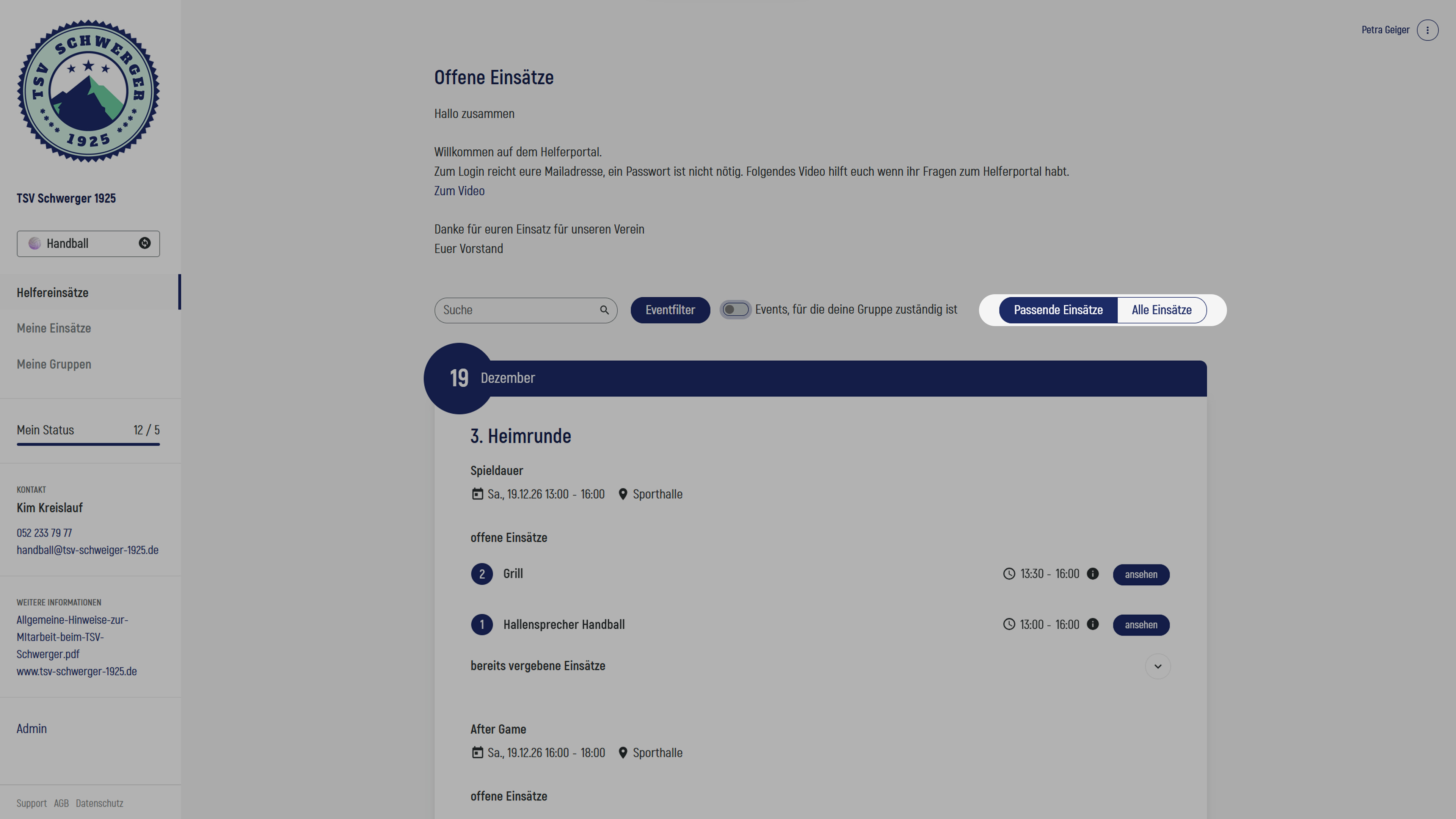
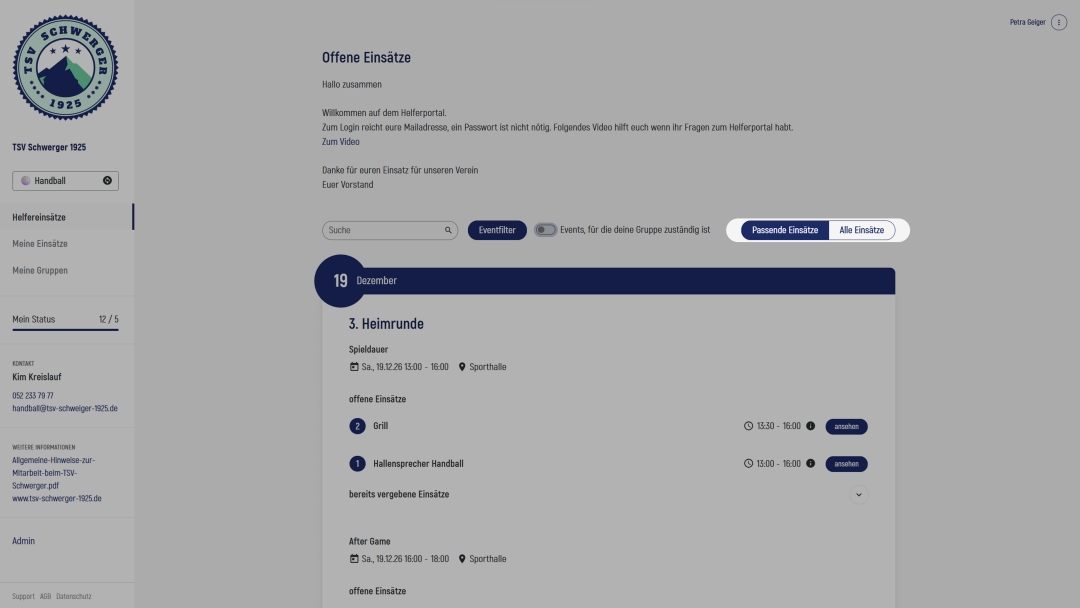
If you are assigned to Groups, you may also see the option "Matching Tasks"/"All Tasks" in addition to the filters. Under "Matching Tasks" (default view), you will find all Tasks that match your Group or that your Group is allowed to take on. Under "All Tasks", you will find all available Tasks - however, you may not be able to take on some of them. We therefore recommend looking for your Tasks under "Matching Tasks".
Special case: Responsibility
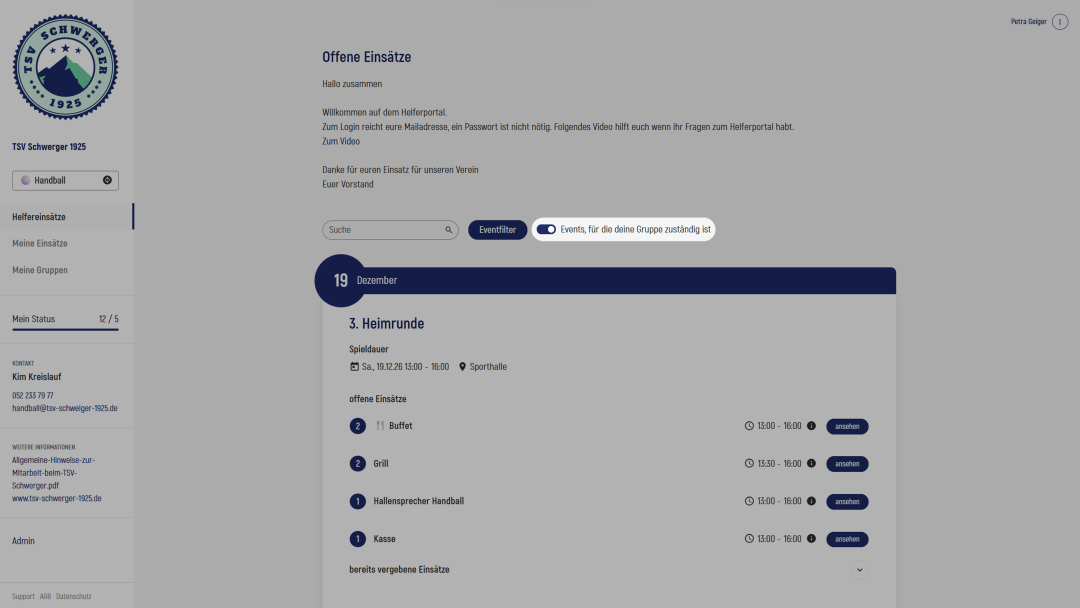
Your organisation may have made your Group responsible for certain Events. In this case, only these Events will initially be displayed. If you are unable to take on any Tasks in these Events, you can change the toggle and search for other Matching Tasks.
Taking on a Task
Once you have found the Task you want, click the "View" button to open the Task details. Here you will find all the information about the Task, which may also include a link to the Location or a PDF with additional information, depending on how your organisation has configured it. If everything suits you, you can take on the Task by clicking "Take on Task".
Automatic emails
When you take on a Task, you automatically receive a confirmation email. It contains all the Task details, information about your contact person and your personal details. You will also receive a link to the Helper section where you can update your personal details directly if necessary.
Shortly before the Task, you will also receive a reminder. This is essentially the same email as the confirmation email, with the same content, but it is marked as a reminder.
Additional options / Special cases
Your organisation can enable various additional features in the Helper section. You may encounter the following options when taking on a Task:
Task credit
You can add people to your profile to whom you can credit Tasks. This means that you carry out the Task, but the Task value is credited to someone else. When taking on the Task, you can specify whether you want to credit it to someone else or to yourself.
Override name
If the "Take on Task personally" checkbox appears when you take on a Task, you can untick it and enter the name of the person who will carry out the Task for you. The organisation will still be able to see that you took on the Task.
Double opt-in
If, after taking on a Task, you are redirected to a page informing you about a confirmation link, you will receive a reservation email before the confirmation email. This means that you have initially only reserved the Task and must confirm it within 24 hours by clicking the link in the email. Only then is the Task considered confirmed. If you miss the confirmation deadline, the Task will be released again.
As soon as you have confirmed the Task, you will also receive the final confirmation email.
Unable to take on a Task
If you cannot find a button to take on the Task, there may be two reasons:
- the Task can only be taken on by certain Groups
- the Task cannot be taken on independently
Both are settings defined by the organisation. In these cases, you can look for another Task or contact the people responsible.
Giving up a Task
Your organisation can decide whether or not you are allowed to give up a Task. The Task details will tell you whether this is possible and, if so, how long you have to give it up.
Task transfer
As an alternative to giving up a Task, the organisation can enable Task transfers. If you are unable to attend, you can arrange a replacement yourself and transfer the Task to that person. Important: the other person must accept the transfer within 24 hours - you will receive an email once they have done so. If they do not accept it, you remain responsible for the Task.