Reporting
Reports allow you to export a wide range of information from the system. You can download the Reports as Excel files and edit them as required. If you are planning to reset Events or delete anything from the system, we strongly recommend exporting the Reports beforehand, as neither resetting nor deleting content can be undone.
Before describing the individual Reports, here is an explanation of what the values in the columns mean:
- Planned: shows how many Tasks a person has signed up for. These Tasks are therefore still in the future.
- OK: shows the Tasks that were completed as expected. Elsewhere, we also use the term "attended". These Tasks have already taken place.
- NOK: stands for NOT OK. In other words, these Tasks were not completed as expected. We also use the term "did not attend". This figure also refers to Tasks that have already taken place. Important: our system automatically assumes that a Task was completed successfully. If someone did not attend, you must ensure that the responsible person or an administrator changes the status to "did not attend".
Task values are frequently shown in the Reports. They appear in the Reports exactly as you have defined them under "Organisation" – "Events & Tasks".
All Reports can be formatted as tables in Excel, allowing you to use the filter functions and display exactly the data you are looking for.
Groups
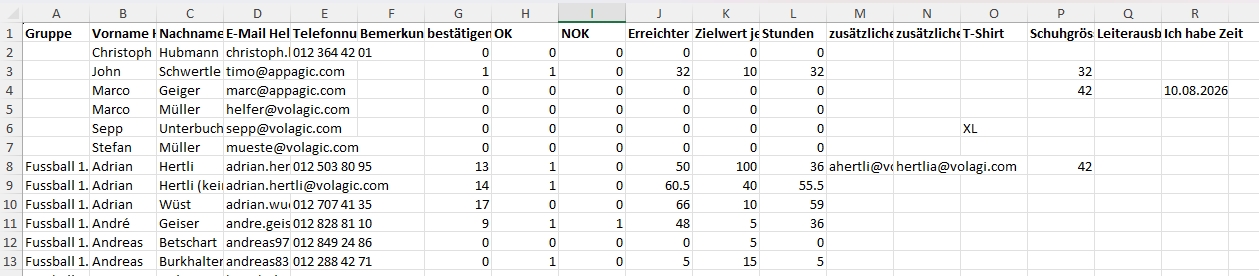
This Report shows which Helpers belong to which Groups and how much they have helped. For example, it can be used to inform Group managers (e.g. coaches at a sports club) about how much each person in their Groups (e.g. teams) has already contributed. If a person belongs to several Groups, they are listed in each of them. Individual Helpers may therefore appear several times in the Report under different Groups.
Helpers
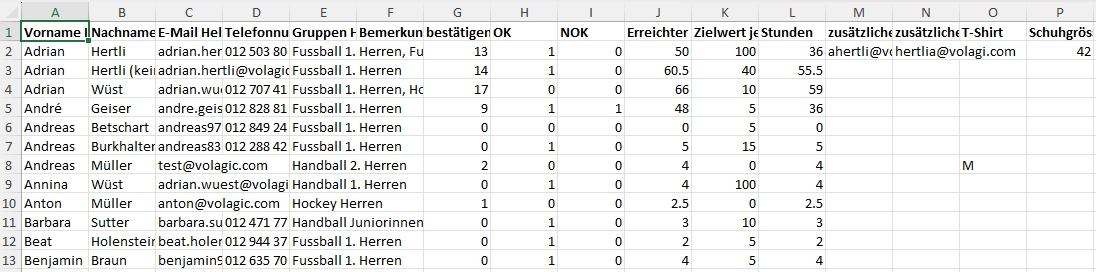
The Helpers Report lists all Helpers. It is useful when you want an overview of everyone. Compared with the Groups Report, one advantage is that each person appears only once while all their Groups are still displayed. This makes it easy to see whether someone belongs to several Groups. In this case, all Groups are listed in the "Groups" column.
Helpers: Target not reached
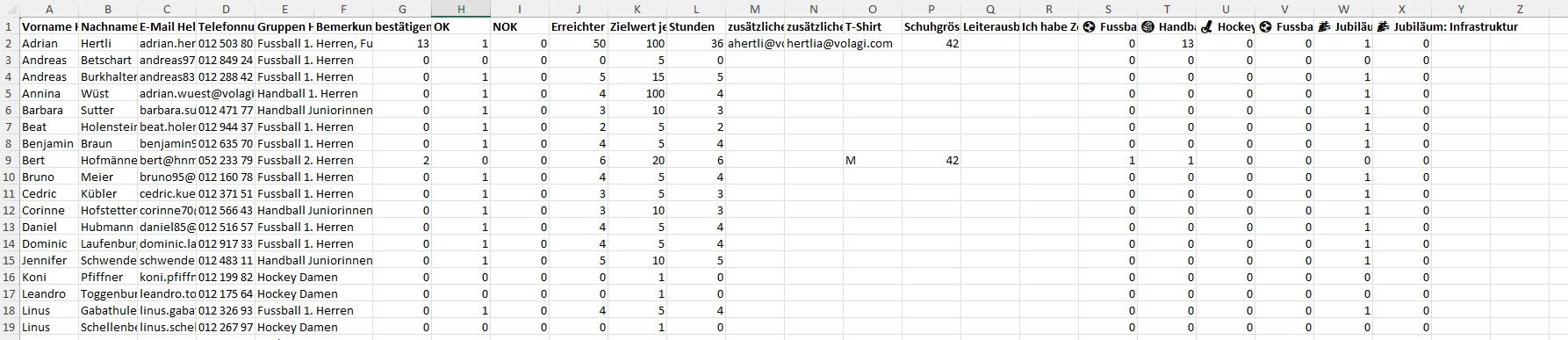
If you set your Helpers a certain number of Tasks to complete, this Report helps you identify who has not reached their target. Only people who have a Target value that has not been reached are listed. This Report requires the Target values to have been set correctly. If your club charges Helpers a penalty at the end of the season for failing to meet their targets, this is the appropriate Report to use.
Events
The Events Report lists all Events together with the Helpers required. The oldest Event is shown first. If you do not want to include past Events, restrict the date range accordingly. All Tasks for each Event are displayed. This Report is useful if you want to see which Tasks have already been taken on, by whom, and where Helpers are still needed. The Report can also be useful if you want to print Task schedules for your Event. Note that the Event itself includes a "Task schedule" function that generates a PDF directly.
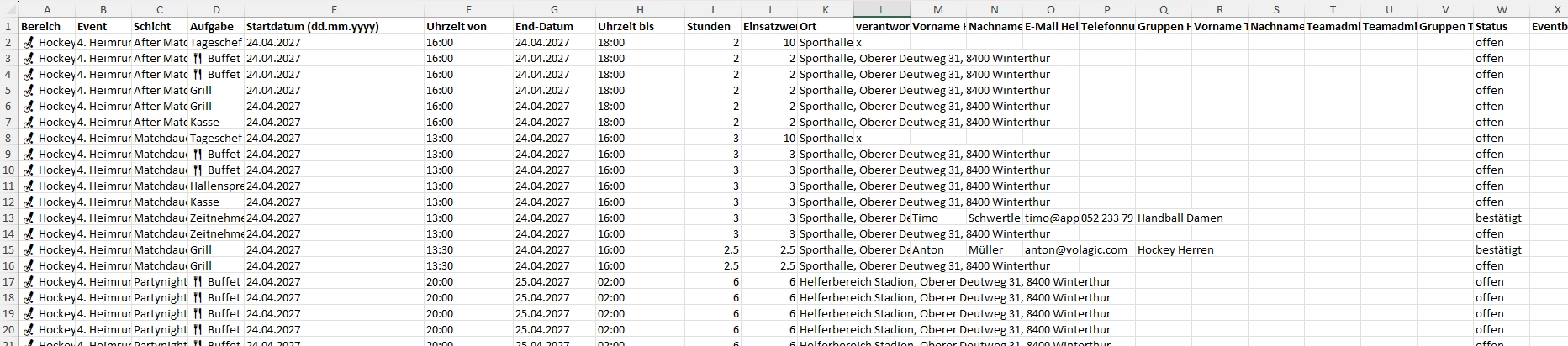
Event summary
The Event summary Report does not show individual Tasks. Instead, it shows how many Tasks you have advertised and how many have been assigned. If your system uses "Tasks" as the unit of calculation, columns I and J may seem somewhat confusing, as they will usually contain exactly the same values as columns G and H. This is because each Task is always credited as 1 Task. The situation is different if, for example, you calculate values in hours. In that case, columns G and H still show the number of Tasks, while columns I and J show the corresponding hours.
This Report is useful if you want an overview of how many Tasks you need without needing details of the individual Tasks.
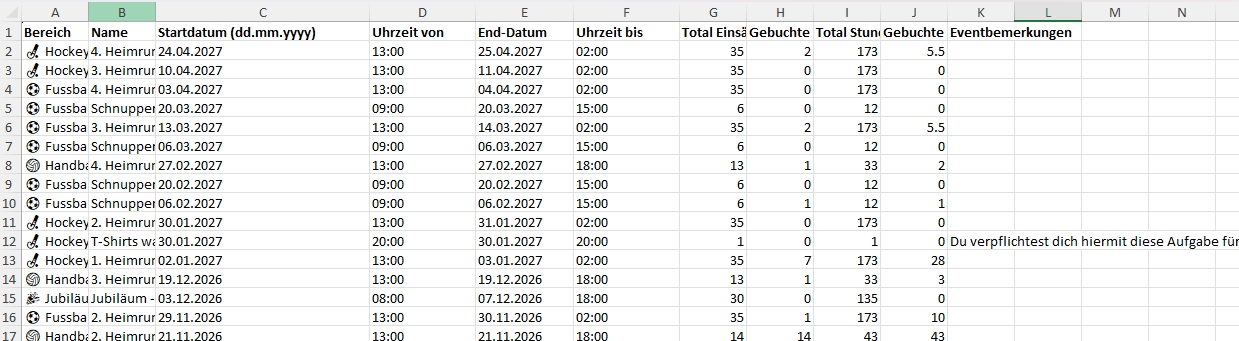
Shift summary
The Shift summary Report provides the same information as the Event summary, but lists each Shift separately. This Report is useful if you have Events with several Shifts and want to see how Tasks are distributed across the individual Shifts. The same principle applies here: columns H and I are identical to J and K if you calculate using Tasks and each Task is credited as 1 Task.
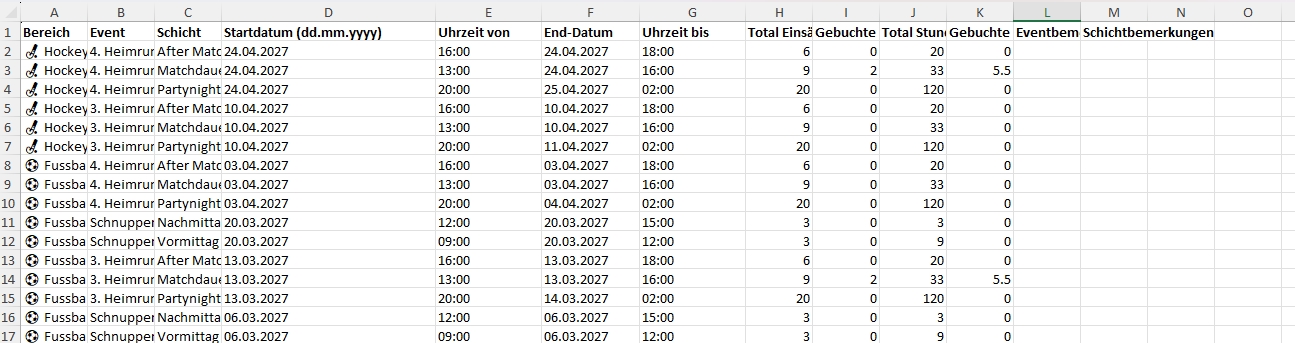
Tasks
This Report lists every individual Task for every Helper. It is useful if you want to check when and where each person's Tasks are scheduled.
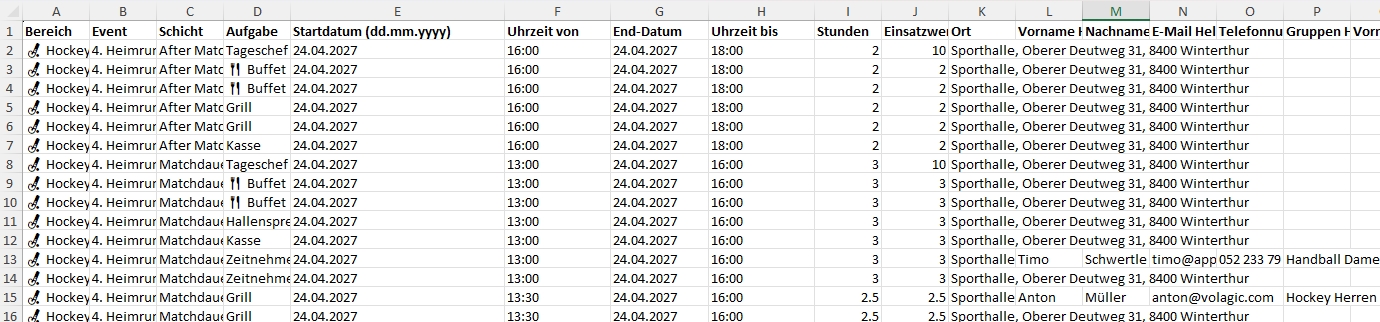
Tasks by Groups
This Report is similar to "Tasks", except that Helpers are grouped by Group. It is therefore the right Report if you want to provide Group managers with details of all the Tasks assigned to their Group members. For example, a coach may need or want to know when their players are scheduled for their individual Tasks.
Open Tasks
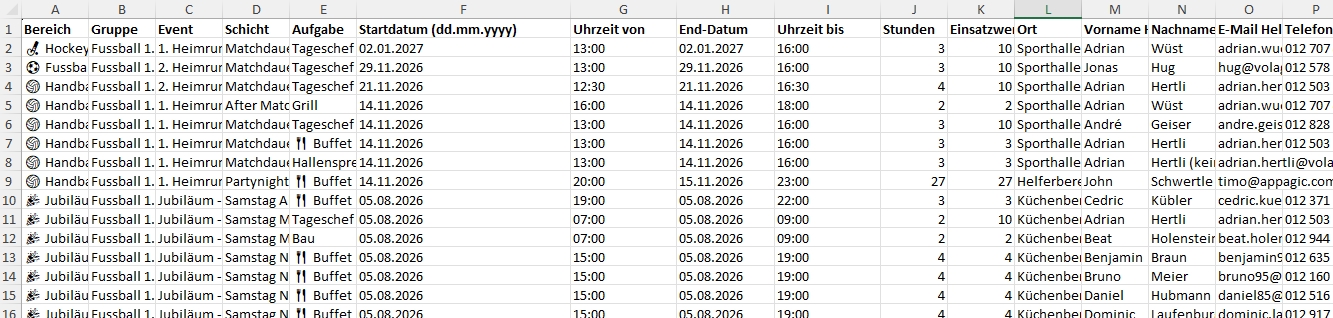
This Report only returns future, open Tasks. There is no point in running this Report for a past period, as it will always be empty. Its purpose is to provide you with an Excel file showing all Tasks that are still open.
Jobs summary
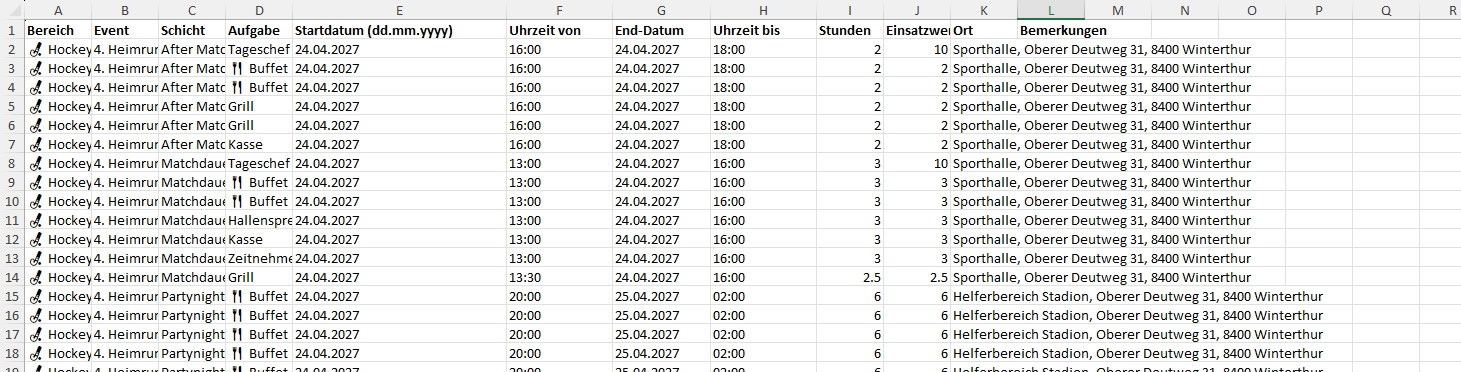
This Report is related to the Event summary. It is ideal for seeing how many Tasks have been advertised and already booked for each Job. Here too, columns E and F are identical to columns G and H if you calculate using Tasks and each Task is credited as 1 Task. The Report also shows which Groups can perform which Jobs and whether a Job has been marked as a responsible role.
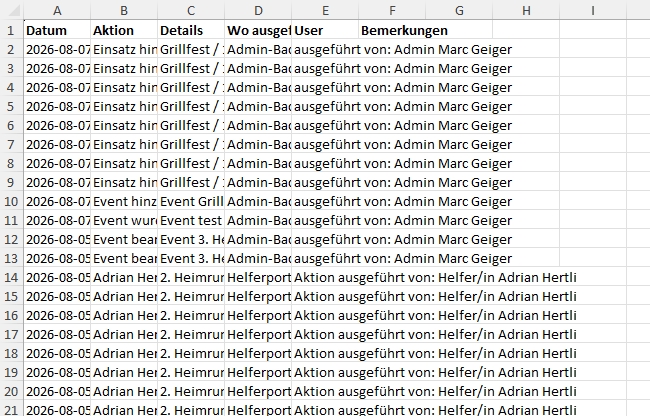
Log entries
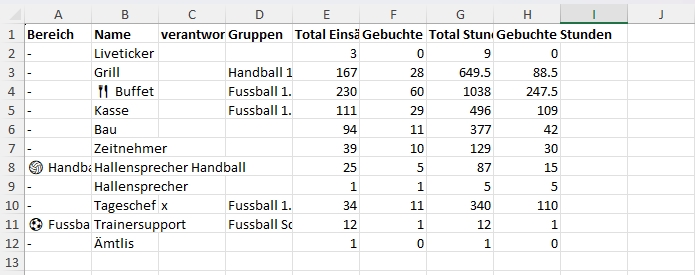
Every action, whether performed in the administration area or the Helper section, is logged. This Report provides a summary of these actions.